Database
Database support is only available in Crawlab Pro.
By default, Crawlab will save the collected data to the default database (MongoDB). Yet Crawlab aims at being a multipurpose web crawler management platform, which means it can be used to manage crawlers for various purposes. Therefore, it is designed to be flexible and can be easily integrated with mainstream databases, so that you can store your scraped data in the database of your choice.
The Database module in Crawlab is similar to some database management tools like DBeaver or DataGrip.
Supported Databases
Crawlab currently supports the following databases:
We are working on adding more database support, including but not limited to:
Database Management
Crawlab provides a centralized database management interface, where you can manage your databases and data collections.
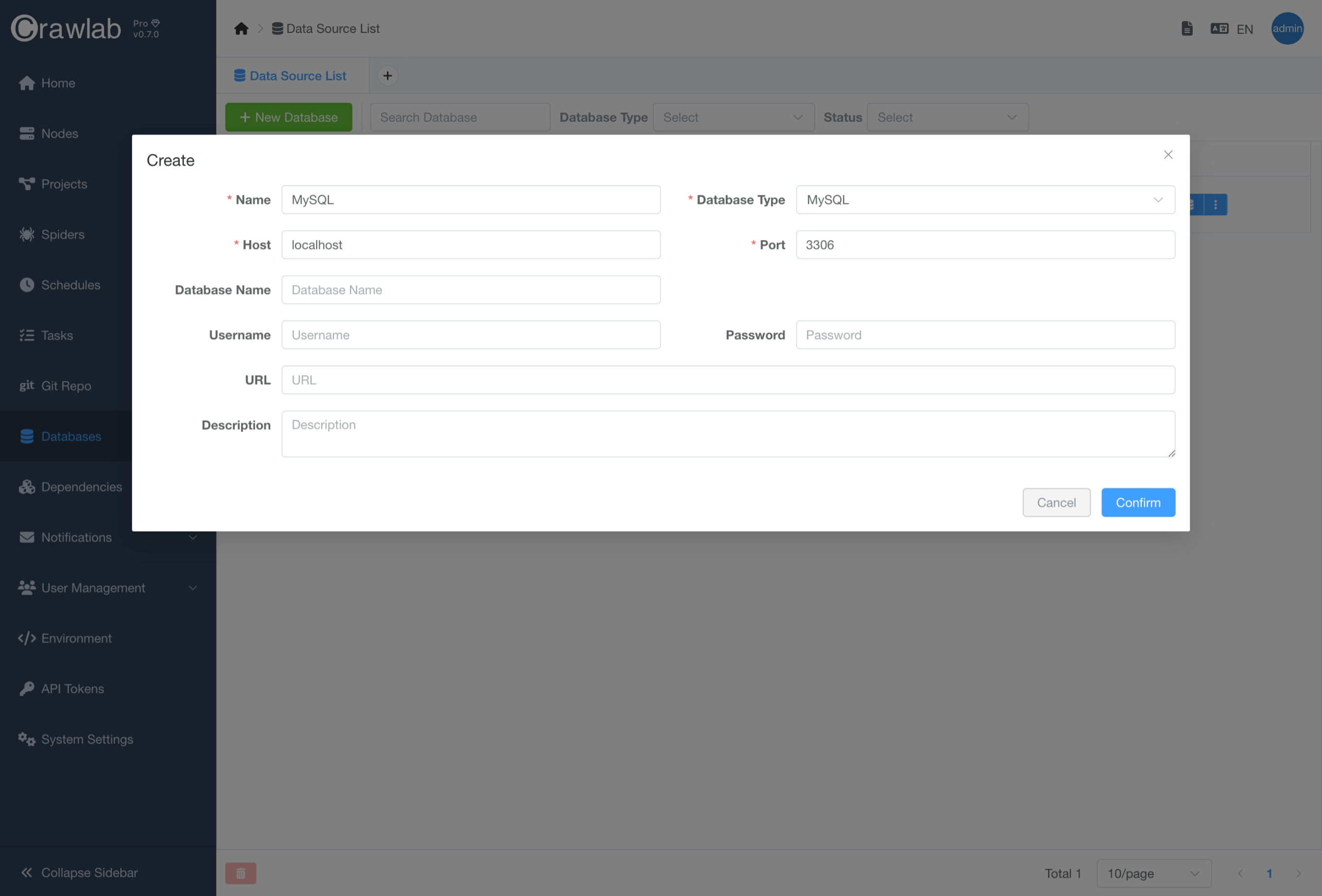
Create Database
You can create a new database by clicking the New Database button in the database management interface and entering
the database connection information.
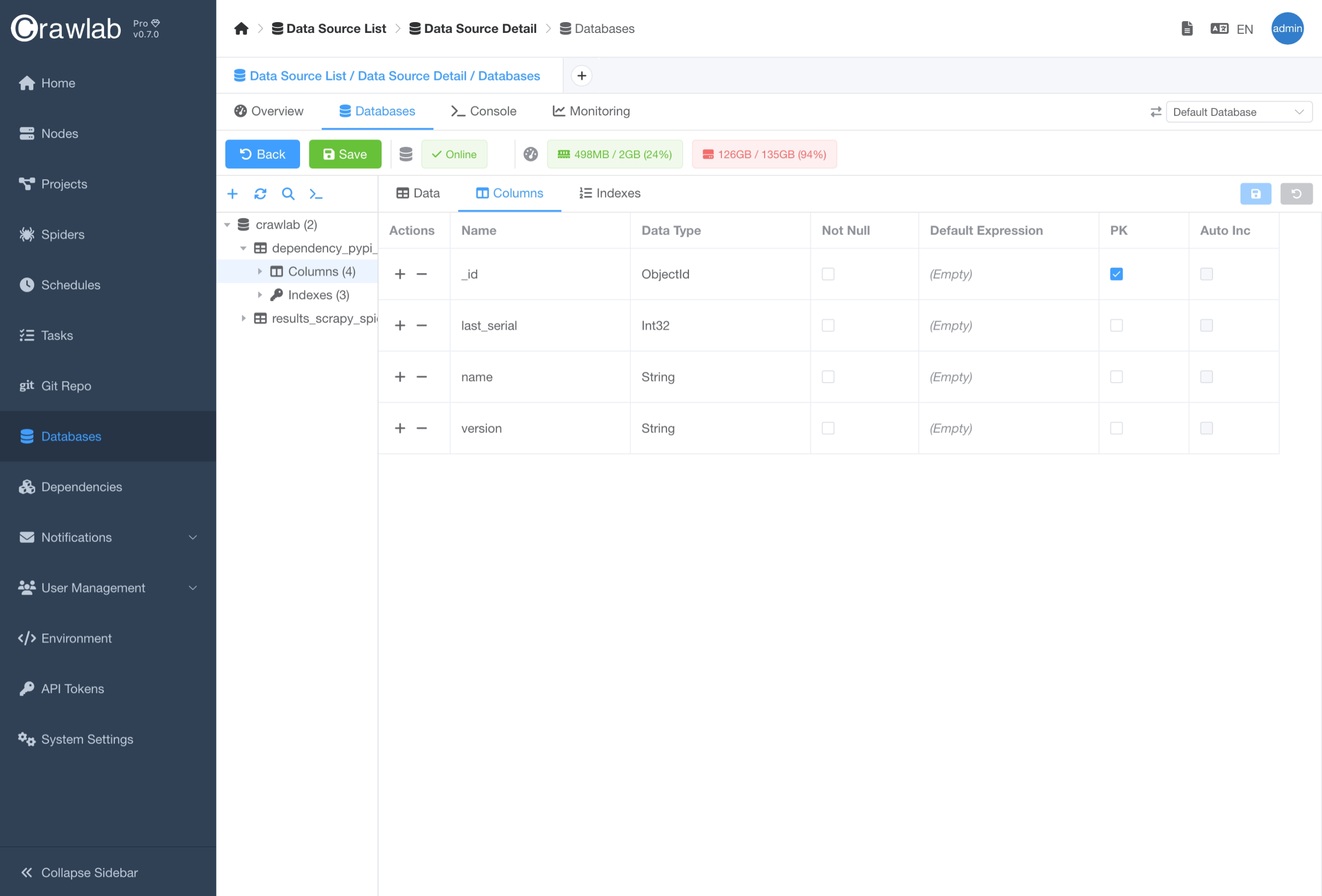
Update Database Schema
You can alter the database schema like adding, updating or deleting tables in the Databases tab in the Database
detail page.
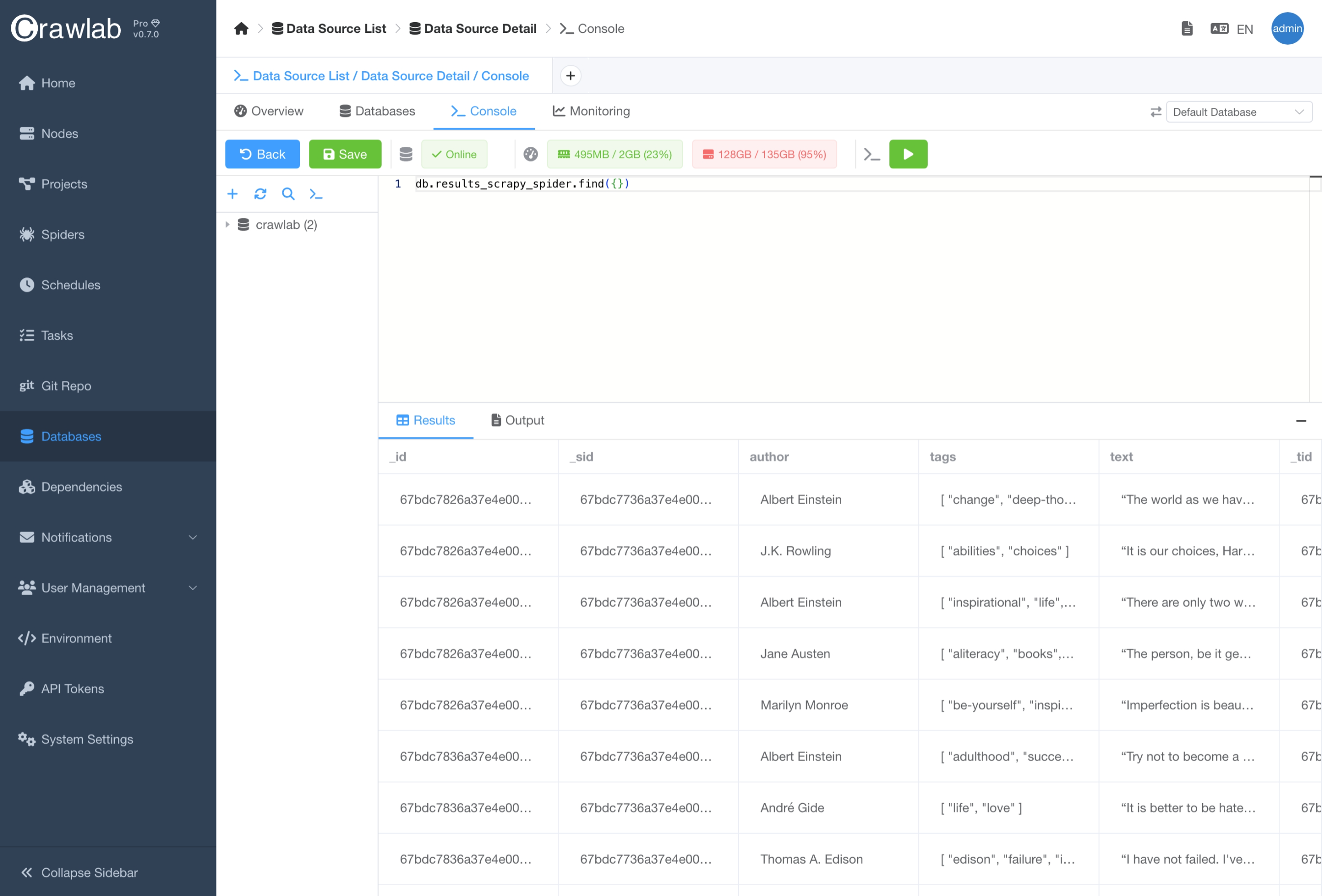
Execute Query
You can also execute database queries in the Console tab in the Database detail page. This is useful when you want
to test your queries before running them in your code.
ORM Mode
Starting from v0.7.0, Crawlab provides native ORM (Object-Relational Mapping) support for SQL databases,
powered by GORM. When ORM mode is enabled, Crawlab manages your database schema and performs
type-safe operations automatically, including automatic schema detection and table management — so you no longer
need to hand-write CREATE TABLE statements before storing scraped data.
Supported Databases
ORM mode is available for the following data sources:
- MySQL
- PostgreSQL
- SQL Server
Other data sources (e.g. MongoDB, Elasticsearch) continue to use Crawlab's native storage handling and do not expose the ORM toggle.
Enabling ORM
For a compatible database, an ORM toggle is shown in the database settings. Switching it on enables ORM-managed schema and writes for that database; switching it off reverts to the legacy storage service. The setting is per-database, so you can enable ORM selectively.
When a database is created, Crawlab initializes a sensible default — ORM is enabled by default for supported data sources and disabled for the rest. You can change it at any time; the toggle is non-destructive and does not drop existing data.
ORM mode only affects how Crawlab manages schema and writes for the selected database. Existing data is preserved when toggling, so you can migrate incrementally.
ORM API
ORM state can also be managed programmatically via the REST API:
| Method & Path | Description |
|---|---|
GET /databases/{id}/orm/status | Whether ORM is enabled and supported for the database |
PUT /databases/{id}/orm/status | Enable or disable ORM ({"enabled": true}) |
GET /databases/{id}/orm/compatibility | Compatibility details, including reasons and the list of ORM-supported data sources |
POST /databases/{id}/orm/initialize | Apply the default ORM setting for the database's data source |
See the ORM Status API and related endpoints in the API Reference for full request and response schemas.
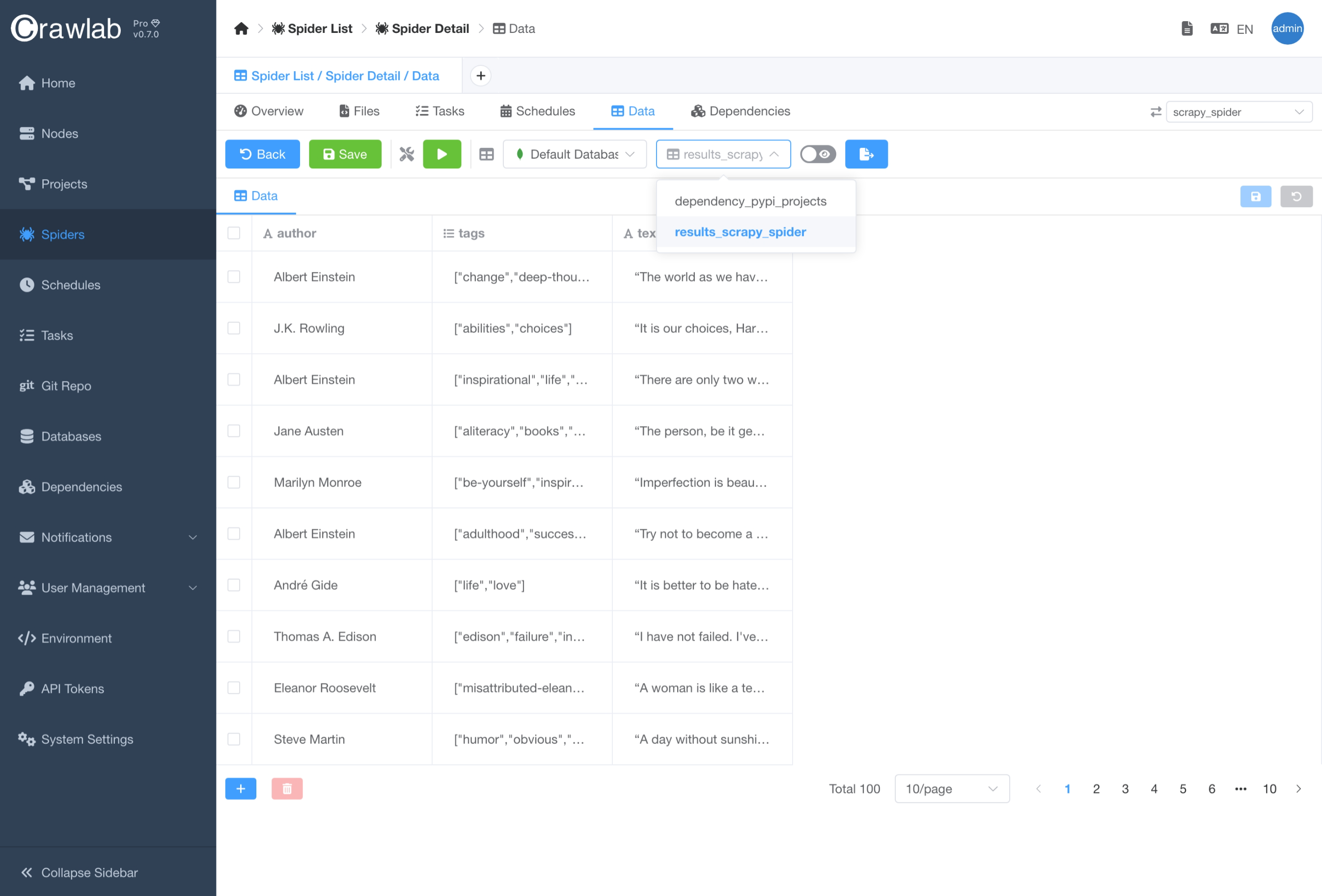
Connect to Database
In the Data Integration section, you have already learnt how to use Crawlab SDK to store data to Crawlab so that you can preview scraped data.
The Database module is designed to be a centralized database management interface, where you can easily manage your
databases
and tables. In addition, you can select the database you would like to store your scraped data to in the Spider detail
page.
Follow the steps below to connect to a database.
- Create a new database in the
Databaseslist page. - Navigate to the
Spiderdetail page. - Navigate to the
Datatab. - Choose the database and table for storing scraped data.